01Quick start
- Run the installer (free trial or your account). Close your DAW first.
- Open your DAW, rescan plugins if it asks, and put Gravity Trip on a track or a send. It's listed under Scope Audio.
- The licence window opens the first time. Enter your email and licence key, or your email alone to start the 7-day trial.
- Click the preset name at the top to browse presets. Start with Event Horizon, Slow Orbit or Grain Cloud.
- Set Dry/Wet: about 25–40% on an insert, 100% on a send. Then drag the black hole up or down to change Gravity.
02Installing
Gravity Trip runs on 64-bit Windows 10 and 11, in any DAW that hosts VST3 plugins (FL Studio, Ableton Live, Studio One, Cubase, Reaper and others). It also comes as a standalone app. You need a graphics card with OpenGL 3.2, which almost every computer from the last ten years has.
The installer puts two things on your computer:
- The VST3 plugin in
C:\Program Files\Common Files\VST3, the folder every DAW checks. - The standalone app in
C:\Program Files\Scope Audio\Gravity Trip, with a Start menu shortcut.
No other software is needed: no iLok, no licence manager, no Visual C++ download. To uninstall, use Windows Settings → Apps, or the uninstaller in the Start menu folder. Your presets and licence are kept.
03Activating and the free trial
To activate, enter the email you bought with and your licence key (it looks like GT-XXXXX-XXXXX-XXXXX-XXXXX). You can find it in your order email and on your account page. Activation needs the internet once. After that Gravity Trip works offline.
One licence covers up to 3 of your own computers. Moving to a new one? Open the licence window and click Deactivate, or remove the old computer on your account page. Then activate on the new one.
The free trial lasts 7 days and is the full version. Start it from the licence window with just your email. When it ends, Gravity Trip passes your audio through untouched, so your projects still open and play. Enter a key at any time to unlock it.
The line next to the title in the top-left corner shows your status: who it's licensed to, the trial days left, or Not activated. Click it to open the licence window. About every two weeks, if you're online, the plugin quietly checks its licence. Offline it carries on working; a computer that's never online just needs to connect once every six months (every three weeks in the first month after buying). If it's been too long, the line reads Connect to confirm licence: connect and click Check now in the licence window.
04Finding your way around
Gravity Trip has three pages. You can switch between them with the words Front · Texture · Space at the top left. You can resize the window from 750 × 480 up to 1800 × 1152.
- Top centre: the preset bar (undo and redo, the menu, previous and next, the preset name, save, and A/B).
- Bottom row: the knobs for the page you're on.
- Bottom left: the gear menu with settings. Bottom right: bypass.
Using the controls: drag a knob up or down to change it, and hold Shift for fine changes. Scroll the mouse wheel over a knob to nudge it. Double-click a knob to reset it. In a DAW, right-click a control for the host's automation menu.
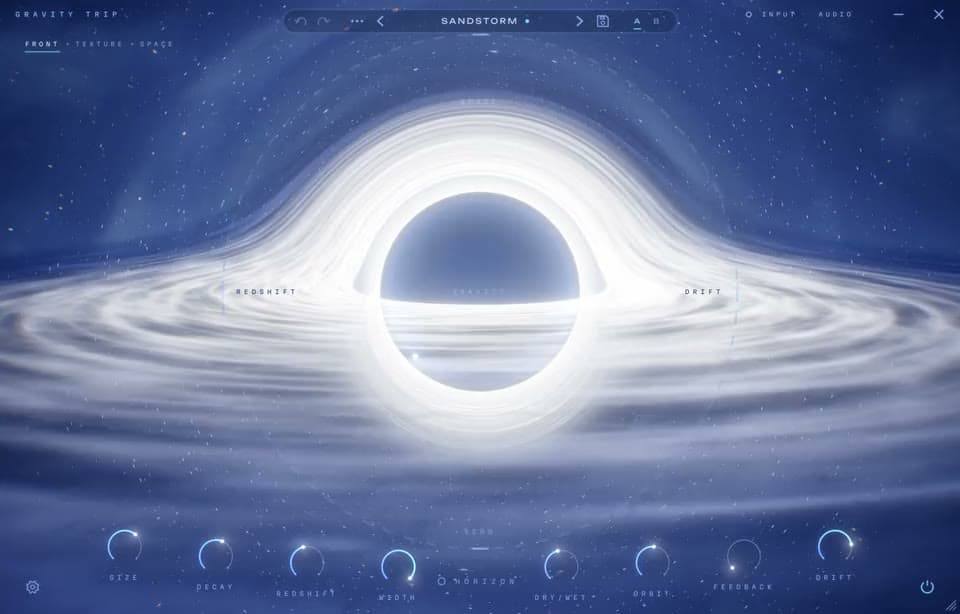
05FRONT: the black hole
The black hole itself is Gravity, the main control. Drag it up or down. Low values give you a clean reverb. Turning it up lets grain texture rise out of the tail. The grains get longer and more numerous, smear further back in time, and more of them play reversed and an octave down. Above the middle, the space also grows bigger and longer.
| Control | Range | What it does |
|---|---|---|
| Size | 0–100% | How big the room is, from a small chamber to a vast hall. |
| Decay | 0.1–30 s | How long the reverb takes to fade away. |
| Redshift | 0–100% | The colour of the tail. The middle (45%) is neutral. Lower is brighter, and below about 25% an octave-up shimmer joins in. Higher is darker, and above about 65% the tail falls an octave. It also darkens the echoes. |
| Width | 0–100% | Stereo width of the effect (your dry sound isn't changed). 0% is mono. |
| Horizon | on / off | Freezes the space. See Horizon below. |
| Dry/Wet | 0–100% | Balance between your sound and the effect. 0% is exactly your original sound. |
| Orbit | 1–2000 ms | The time between echoes. Echoes bounce left and right. Can lock to tempo: see Tempo sync. |
| Feedback | 0–100% | How many echoes you hear and how loud they are. Below about 4% there are no echoes; from 60% they're at full level. |
| Drift | 0–100% | Movement: chorus inside the reverb, wow on the echoes, and grains scattered and detuned across the stereo field. |
Dry/Wet lock: click the Dry/Wet label to lock it. While it's locked, changing presets doesn't change your mix level. This is handy on a send, where you want it at 100%.
06The orbit field
Click or drag in the ring around the black hole to move the probe. The direction you push sets what changes, and the distance sets how much:
- Up: more space (bigger size, longer decay)
- Down: more echo (more feedback, longer orbit)
- Left: more redshift
- Right: more drift
The further out you go, the wetter and wider it gets. The probe adds to your knob settings without moving the knobs, and can be automated in your DAW (Orbit X and Orbit Y). To reset it, double-click the field, drag the probe back into the hole, or choose Return probe to the hole in the gear menu.
07Horizon (freeze)
Horizon freezes the reverb so it hangs in the air. Echoes and grains keep playing on top. Choose how it behaves under Horizon in the gear menu:
- Hold: the reverb stops listening and sustains what it already has, forever. Good for pads and drones under a part.
- Infinite: new sound keeps layering onto the frozen tail. It's level-guarded, so it builds without running away.
Horizon isn't saved in presets, so a preset never loads frozen. Automate it in your DAW to freeze on cue.
08TEXTURE: the grain engine
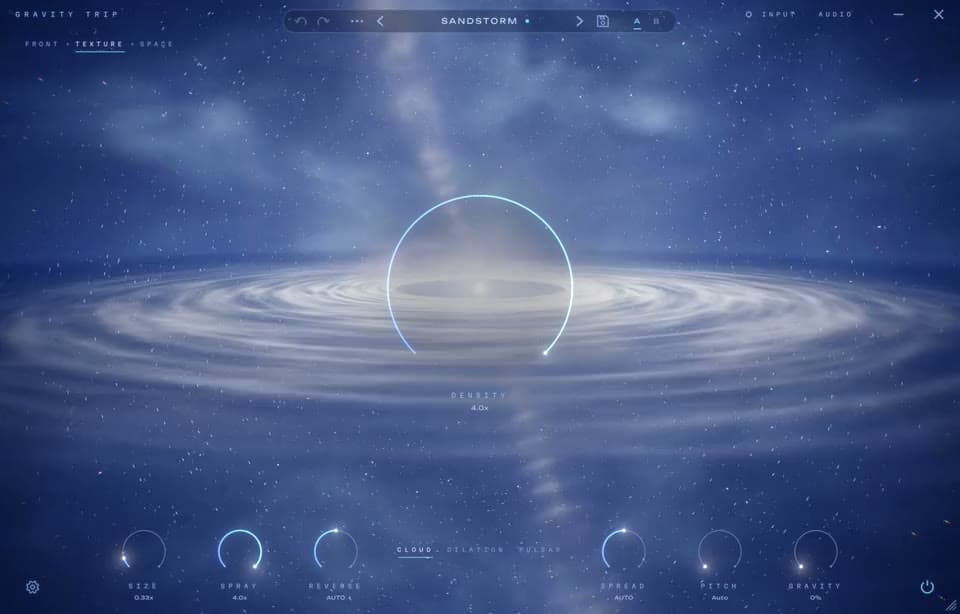
The TEXTURE page shapes the grains that Gravity brings in. Pick a mode with the words in the bottom row:
- Cloud: a free-floating cloud of grains. This is the default.
- Dilation: the grains read from a moment that falls further and further behind, like time stretching near the hole. Higher Gravity slows it more.
- Pulsar: grains fire in time with your track. Each new hit restarts the pattern, and the grains replay that hit. Density picks the rhythm: 1/4, 1/8, 1/16 (the middle), 1/32 or 1/64.
Most TEXTURE knobs read AUTO in the middle, which means Gravity decides. Turn one either way to scale what Gravity does, from a quarter to four times as much.
| Control | Range | What it does |
|---|---|---|
| Density | AUTO, 0.25–4× | How many grains. In Pulsar mode, the rhythm. |
| Size | AUTO, 0.25–4× | How long each grain is. |
| Spray | AUTO, 0.25–4× | How far back in time the grains reach. |
| Reverse | AUTO, less–more | How many grains play backwards, from none to almost all. |
| Spread | AUTO, less–more | How wide the grains spread across the stereo field. |
| Pitch | Auto, None, +Oct, -Oct, Both | Grain pitch. Auto lets Redshift and Gravity decide. +Oct and -Oct shift some of the grains an octave; Both shifts some up and some down. |
| Gravity | 0–100% | The same Gravity as on the FRONT page, here for convenience. |
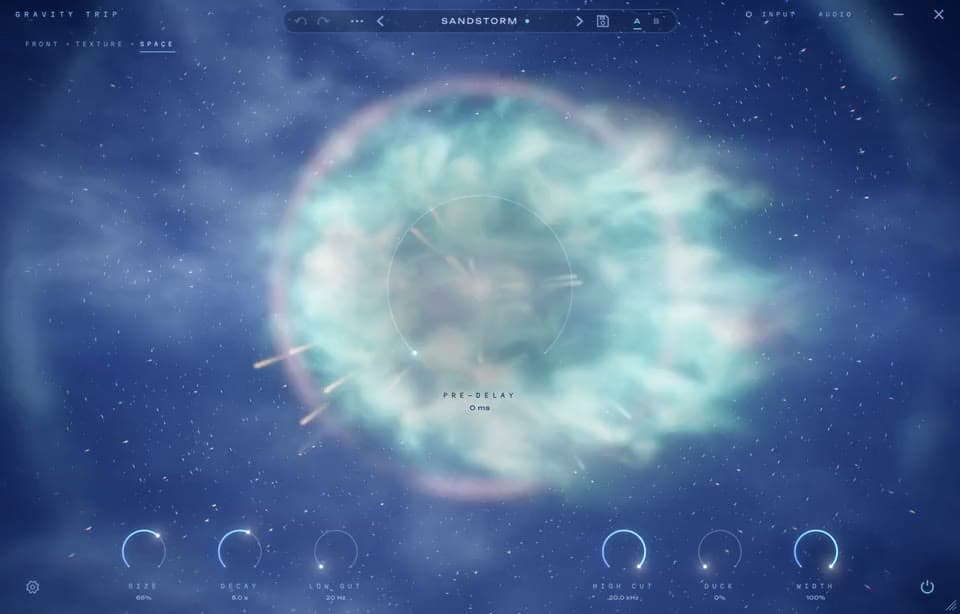
09SPACE: mixing the effect
The SPACE page has the tools that help the effect sit in a mix. They only change the effect, never your dry sound.
| Control | Range | What it does |
|---|---|---|
| Pre-delay | 0–250 ms | A gap before the reverb starts, so the start of each note stays clear. Echoes and grains aren't delayed. |
| Size | 0–100% | Room size (the same control as on FRONT). |
| Decay | 0.1–30 s | Reverb length (the same control as on FRONT). |
| Low Cut | 20–2000 Hz | Removes low end from the effect. Try 150–300 Hz to keep a mix clean. |
| High Cut | 1–20 kHz | Removes top end from the effect for a softer, darker tail. |
| Duck | 0–100% | Turns the effect down while you play and lets it bloom in the gaps. Great on vocals and leads. |
| Width | 0–100% | Stereo width of the effect (the same control as on FRONT). |
The effect also gently rolls off deep sub-bass before it's processed, so the tail never muddies your low end.
10Tempo sync
Turn on Sync echoes to tempo in the gear menu and Orbit steps through note lengths instead of milliseconds: 1/32, 1/16T, 1/16, 1/16D, 1/8T, 1/8, 1/8D, 1/4T, 1/4, 1/4D, 1/2, 1/2D and 1 bar. It follows your DAW's tempo (120 BPM in the standalone app). Pulsar mode on the TEXTURE page always follows the tempo.
11Presets, A/B and undo
Gravity Trip comes with 94 presets in nine categories: Reverb, Delay, Freeze, Texture, Vocals, Drums, Guitar & Keys, Ambient and Glitch. Click the preset name to open the browser:
- Click a preset to hear it with the browser still open. Double-click to load it and close the browser.
- Search by name, category, pack or sound (try “dark”, “wide” or “rhythmic”).
- Star the ones you like to find them under Favourites.
- The arrows next to the name step through presets without opening the browser.
A dot after the preset name means you've changed it. Click the disk icon to save your own version. Undo and redo (the arrows on the left) go back up to 100 steps. A and B give you two settings to compare: B starts as a copy of A, so tweak one and flip between them. The ••• menu can copy A to B or B to A.
12Your own preset packs
Presets you save go into a pack. The first one is called User, and you can make more from the ••• menu (New pack). Each pack can have its own cover image. Packs live in Documents\Gravity Trip\Packs, one folder per pack.
- Share a pack: ••• → Export pack makes a single
.gtpackfile you can send to someone. - Install a pack: ••• → Import pack, then choose the
.gtpackfile. - Rename or delete a preset: click the … next to it in the browser. Deleted presets go to the Recycle Bin, so you can get them back.
Presets save everything except bypass, Horizon and the visual quality.
13The standalone app
The standalone app runs Gravity Trip without a DAW, for playing an instrument or mic straight through it. The header at the top has two buttons:
- Audio: choose your audio interface, inputs and outputs.
- Input: turns your input on. It starts muted so a mic next to your speakers can't cause a feedback howl. Use headphones with a mic.
Drag the header to move the window. It opens at the size you last used.
14Graphics and performance
The black hole is drawn by your graphics card, not the processor your audio uses, and it stops drawing when the plugin window is closed or minimised. Choose how detailed it is under Visuals in the gear menu:
- Low: lightest, for older laptops and integrated graphics.
- High: the default.
- Ultra: sharper and smoother (60 frames a second), for a dedicated graphics card.
The sound is identical at every setting. Gravity Trip adds no latency and works on stereo or mono tracks. With bypass on, it uses no processing power at all.
15Updates
When a new version is out, the line in the top-left corner says so. Click it and follow the link, or download the latest installer from your account. Close your DAW and run it. It replaces the old version, and your licence, presets and packs carry over. See what's new in each version. Updates within the same major version (for example 1.0 to 1.9) are free.
16Troubleshooting
My DAW doesn't list Gravity Trip. Rescan your plugins, and make sure your DAW scans C:\Program Files\Common Files\VST3. In FL Studio, open Options → Manage plugins → Find plugins.
The window is black or blank. Update your graphics driver from Intel, AMD or NVIDIA, then try Visuals → Low in the gear menu. On a laptop with two graphics chips, try setting your DAW to use the high-performance one in Windows Settings → Display → Graphics.
I hear no effect. Check that bypass (bottom right) is off and Dry/Wet isn't at 0%. If the top-left line says Trial ended or Not activated, Gravity Trip is passing your audio through untouched until it's activated.
No sound in the standalone app. Turn on Input in the header, and choose your interface under Audio.
“This computer was removed from your licence.” The computer was removed on your account page. Enter your key again to reactivate it (you can have up to 3 computers at once).
Still stuck? email support@scopeaud.io or fill out our support form, and tell us your DAW, Windows version and graphics card. If we can't get it working, you get your money back.
See also: What's new · FAQ · Support · Licence agreement